
Call recordings are stored in your control panel alongside the rest of your call data, and you can remove any recording you no longer need. There are three places in the control panel where you can do this:
- Delete All Recordings from a Phone Line
- Delete a Recording from the Activity Tab
- Delete a Recording from Custom Reports
- Delete a Recording from AI Call Insights dashboard
Each method starts the same way: log in to your control panel. From there, choose the path that matches where you’re viewing your calls.
When you delete a recording, you can also choose whether to delete the call’s transcription at the same time. The call transcriptions can be removed only if you check that option during the confirmation step.
Note: Deleting a recording is permanent!
Delete All Recordings from a Phone Line
1. Log in to your control panel.
2. In the left column, under Services, click My Phone Numbers.
3. Find the phone number you want to work with, click the three dots to the right, and select Settings.
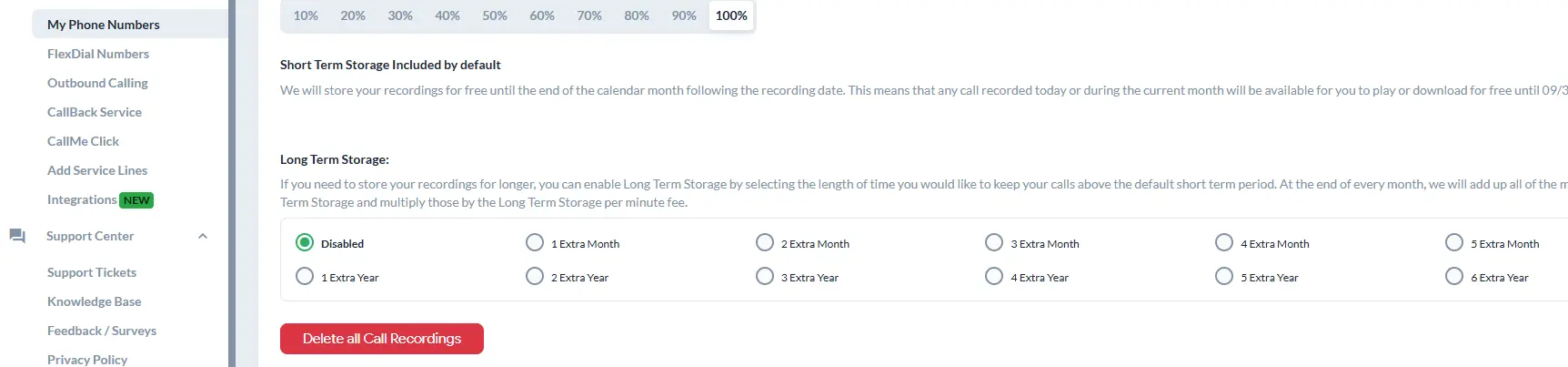
4. Then, from the orange bar, click on the Call Recording tab and scroll down to the red Delete all Call Recordings button. This will delete all recordings attached to this line.
Delete a Recording from the Activity Tab
1. Log in to your control panel.
2. In the left column, under Services, click My Phone Numbers.
3. Find the phone number you want to work with, click the three dots to the right, and select Service Plan.
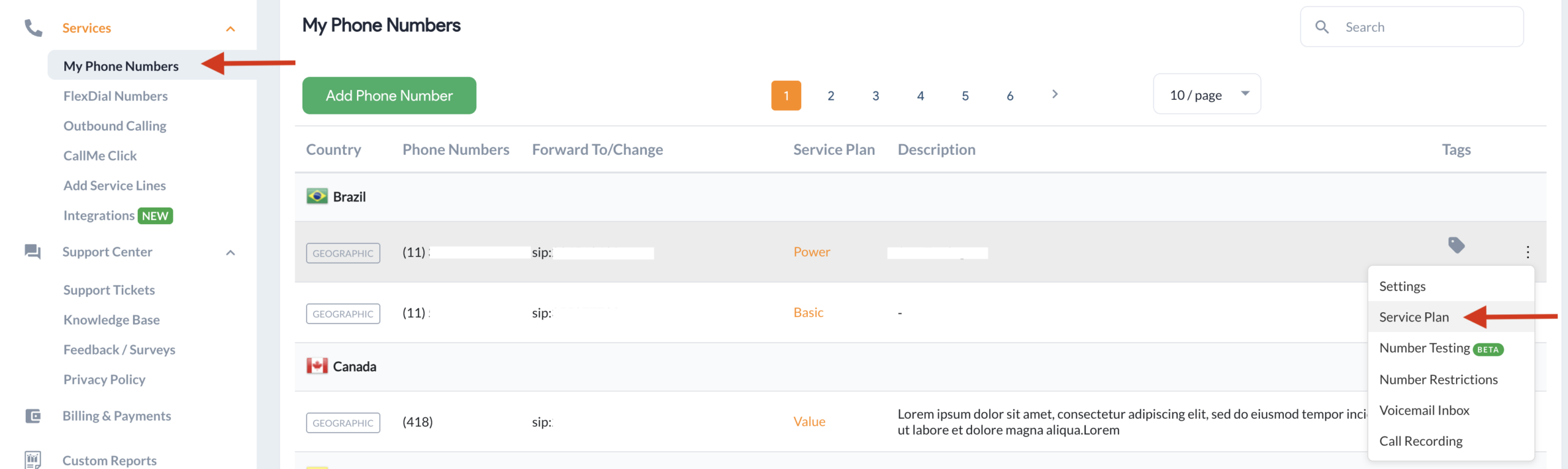
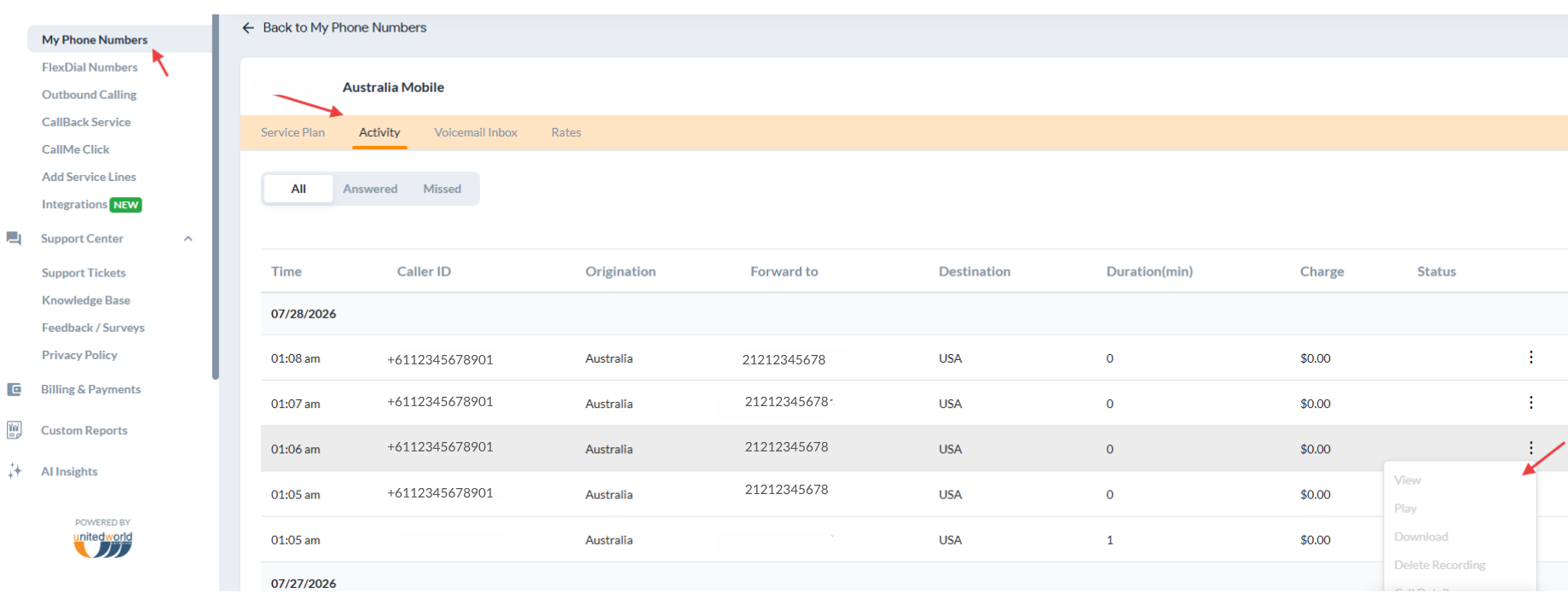
4. When the service plan opens, select the Activity tab.
5. Find the call whose recording you want to delete, then click the three dots at the far right of that row.
6. Select Delete Recording.
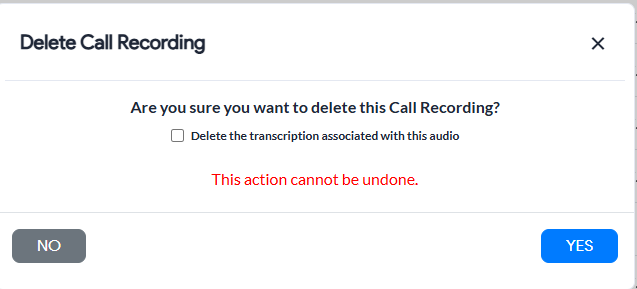
7. In the confirmation window, click Yes.
Note: To remove the call’s transcription as well, check the transcription box before you confirm. Leave it unchecked to keep the transcription.
Delete a Recording from Custom Reports
1. Log in to your control panel.
2. In the left column, click Custom Reports.
3. On the Generate Reports tab, scroll down to the list of calls.
4. Find the call whose recording you want to delete, then click the three dots at the far right of that row.
5. Select Delete Recording.

In the confirmation window, click Yes.
Note: To remove the call’s transcription as well, check the transcription box before you confirm. Leave it unchecked to keep the transcription.
Delete a Recording from AI Call Insights
1. Log in to your control panel.
2. In the left column, click AI Call Insights.
3. Scroll down to the list of calls.
4. Find the call whose recording you want to delete, then click the three dots at the far right of that row.
5. Select Delete Recording.

In the confirmation window, click Yes.
Note: To remove the call’s transcription as well, check the transcription box before you confirm. Leave it unchecked to keep the transcription.
Need help? If you have questions about deleting recordings or need help locating a specific call, reach our 24/7 support team or open a support ticket.