
Text-to-Speech (TTS) lets you turn written text into a professional voice recording in seconds. No microphone, voice actor, or recording studio required. Type what you want callers to hear, choose a voice, and Global Call Forwarding generates the audio for you.
You can use these prompts across your account: as a greeting when customers call your line, as an introduction prompt that plays when your team answers, and as a busy or unavailable voicemail message.
Because each prompt is generated from text, it’s easy to keep current. When your hours, promotion, or campaign changes, edit the text and regenerate the audio in a moment.
How to Create a Text-to-Speech Voice Prompt
You can create a Text-to-Speech prompt anywhere your account accepts a voice recording. The starting point is the same in every case:
1. Log in to your control panel.
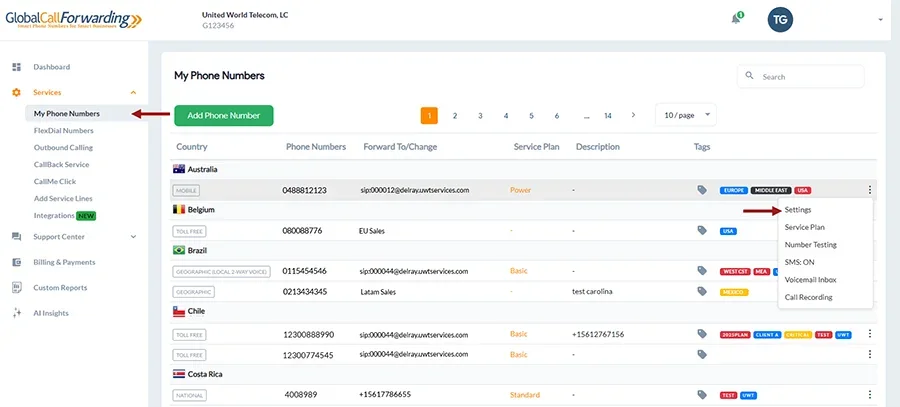
2. From the Dashboard, click My Phone Numbers. Find the line you want to update, click the three dots to the right, and select Settings.
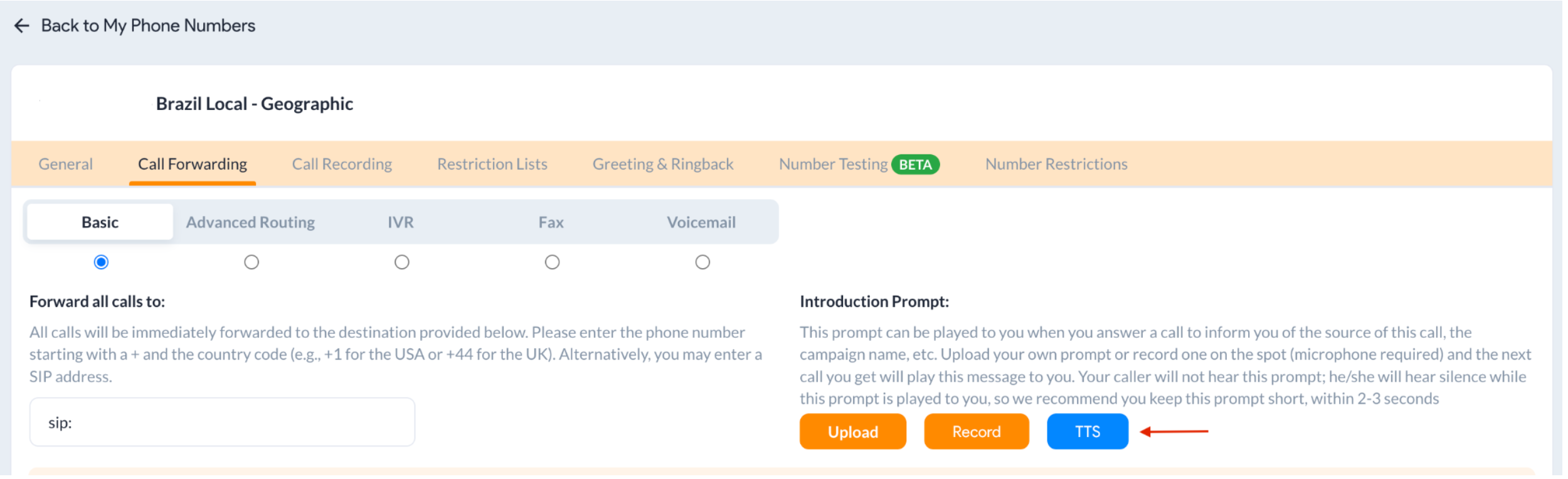
3. Open the tab for the prompt you want to create — Greeting & Ringback, Voicemail, or Call Forwarding (Basic tab). The exact location of the option in each area is covered below.
4. Click the blue TTS button to choose the Text-to-Speech (TTS) option to open the Text-to-Speech window.
Once the Text-to-Speech window is open, the steps are the same everywhere:
a) Voice Type — Select a voice from the dropdown (for example, Janet – natural speed).
b) Prompt Title — Give your prompt a short, recognizable name so you can find it later.
c) Prompt — Type the text you want callers to hear. You can enter up to 2,000 characters.
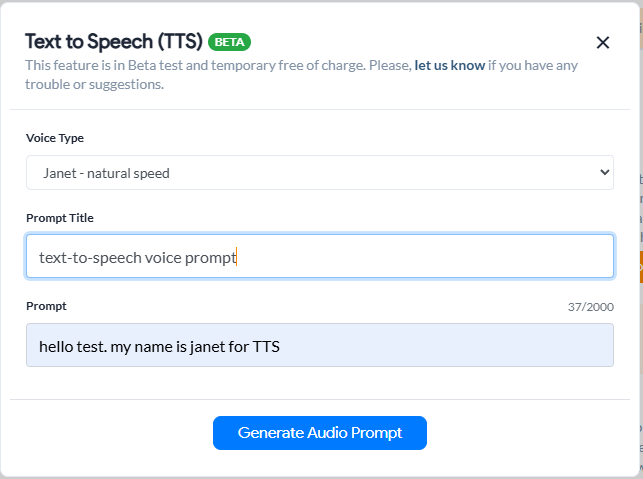
5. Click Generate Audio Prompt.
6. When the audio is ready, click Play to preview it. To make a change, edit the text, or delete the audio with the trash icon, and generate it again.
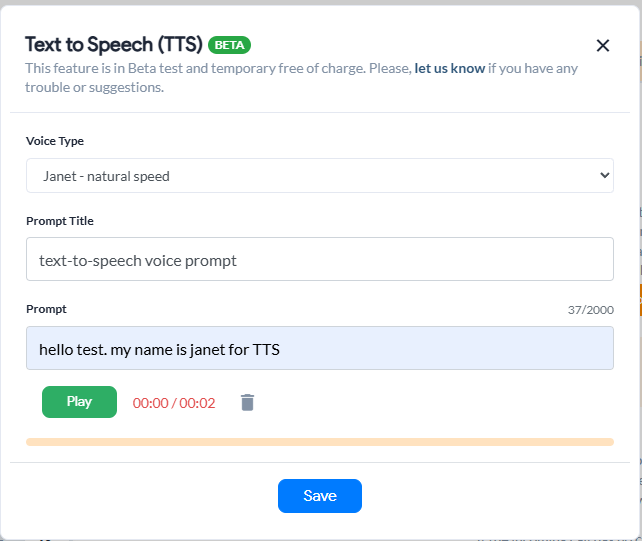
7. When you’re happy with the result, click Save.
8. Your prompt is now attached to that area. Click Save Changes on the tab to apply it to your line.
Where You Can Use Your Prompts
You’ll find the Text-to-Speech (TTS) option in each of the areas below. After you open the option, follow steps 6–11 above to create and save your prompt.
Greeting
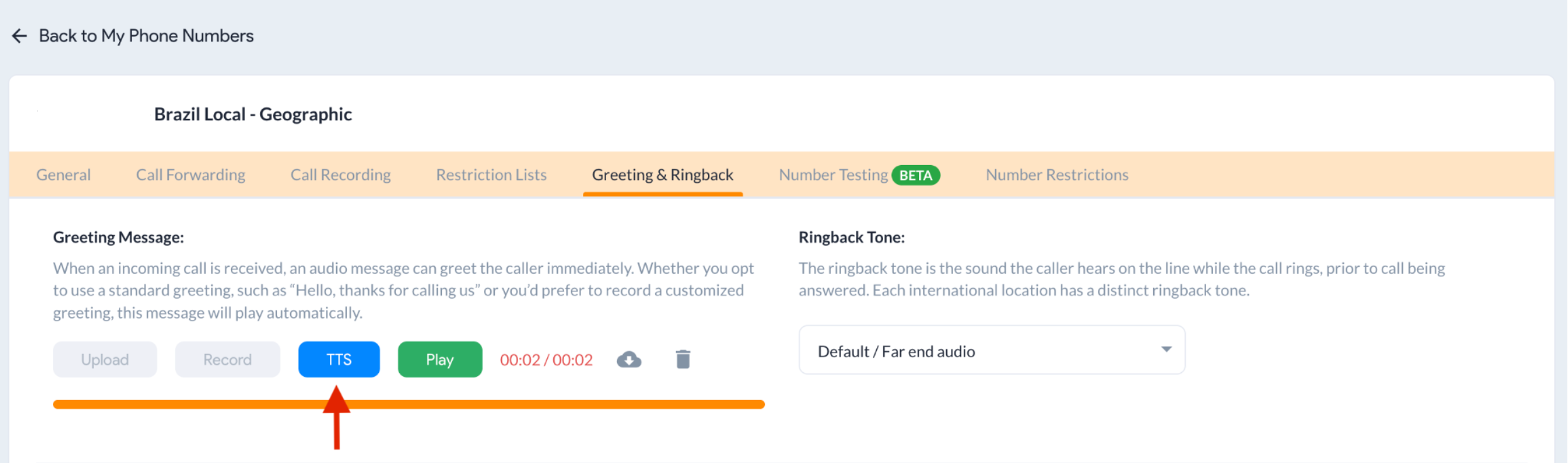
A greeting is the message callers hear when they reach your line — for example, “Welcome to XYZ Company.” Open the line’s Settings, select the Greeting & Ringback tab, and choose the Text-to-Speech (TTS) option in the greeting section.
Voicemail
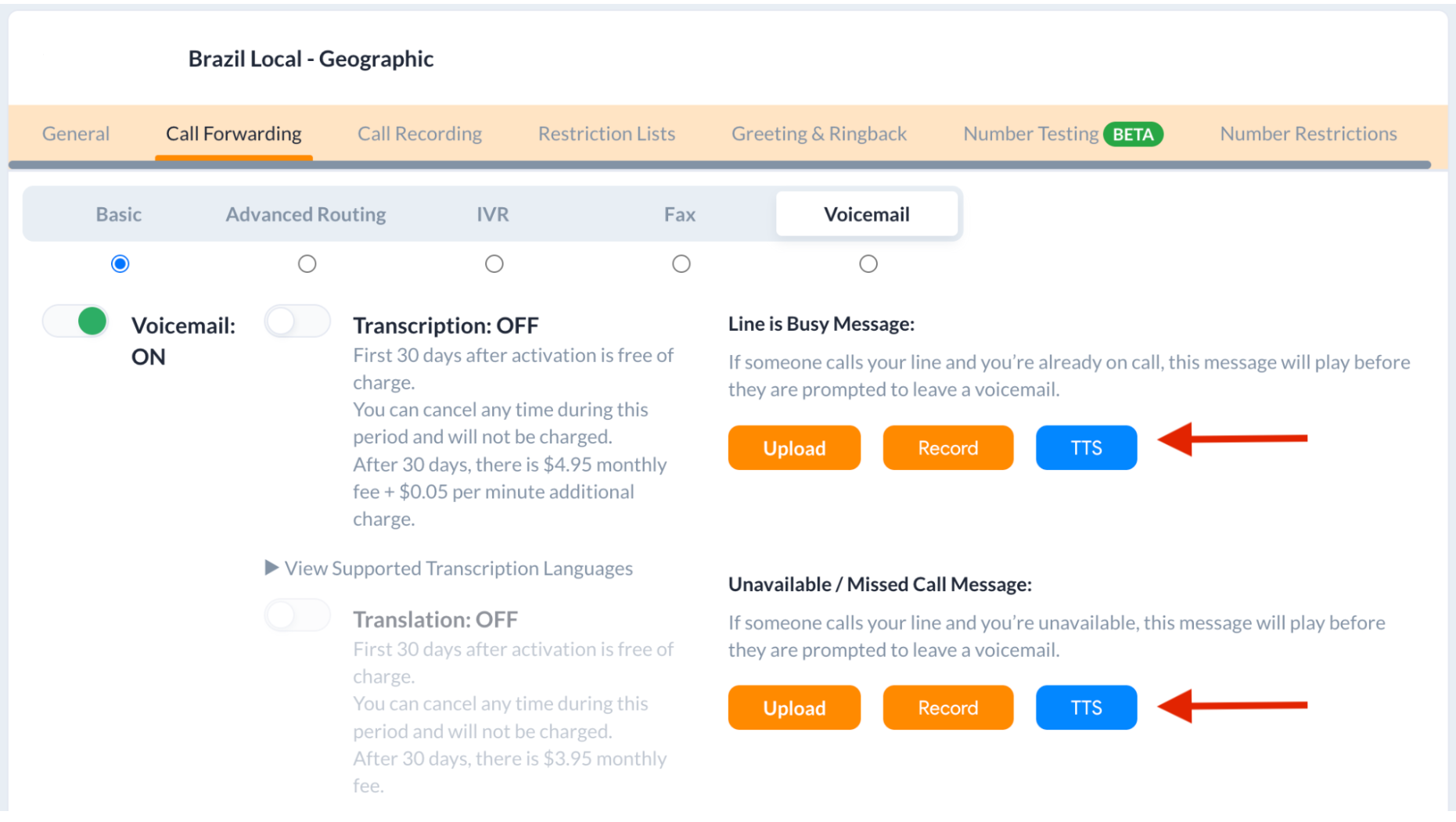
Voicemail prompts play when a call can’t be answered, and you can set a separate message for when your line is busy and for when it’s unavailable. Open the line’s Settings, select the Call Forwarding tab, then Voicemail, pick the message you want to set, and choose the Text-to-Speech (TTS) option.
Introduction Prompt
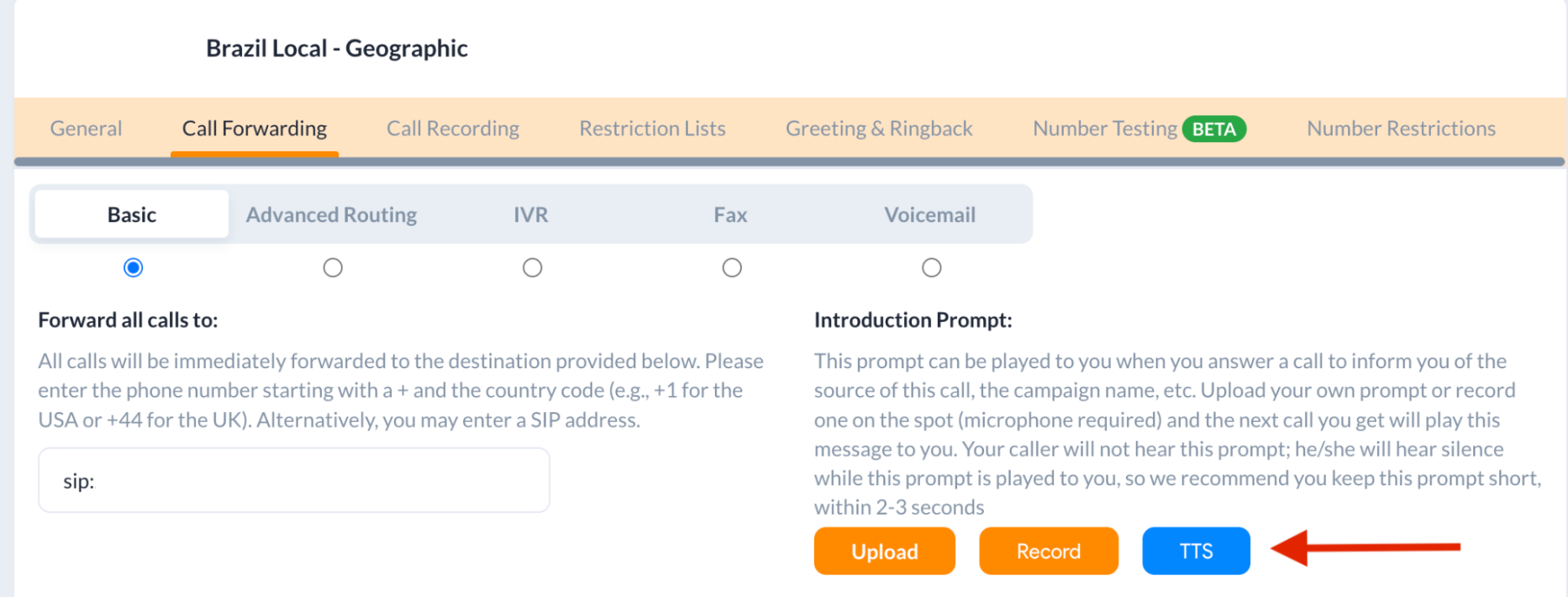
An introduction prompt plays to your team when they answer a forwarded call, so they know the source of the call or the campaign name. Your caller doesn’t hear this prompt; they hear silence while it plays to you. Open the line’s Settings, select the Call Forwarding tab and then the Basic tab, and choose the Text-to-Speech (TTS) option in the Introduction Prompt section on the right. We recommend keeping intro prompts short — ideally 2 to 3 seconds.
Coming Soon: Text-to-Speech in the IVR
Text-to-Speech support for the IVR (auto-attendant menus) is on the way. Once it’s live, you’ll be able to generate menu prompts the same way you do for greetings, voicemail, and intro prompts.
In the meantime, you can record or upload audio in the IVR Manager, or set up a Call Whisper to announce the call source to your team.
Supported Languages
Text-to-Speech currently supports 32 languages, and the language is detected contextually from the text you enter, so there’s no separate language setting to configure.
- European & Eurasian: English (US, UK, Australia, Canada), Spanish (Spain, Mexico), Portuguese (Brazil, Portugal), French (France, Canada), German, Italian, Russian, Turkish, Ukrainian, Polish, Swedish, Dutch, Greek, Czech, Finnish, Romanian, Hungarian, Slovak, Danish, Norwegian, and Bulgarian.
- Asian & Middle Eastern: Japanese, Mandarin Chinese, Hindi, Korean, Arabic (Saudi Arabia, UAE), Filipino, Indonesian, Malay, Vietnamese, and Tamil.
Note: Text-to-Speech is currently in Beta and free to use during the beta period. If you run into any trouble or have suggestions, use the feedback link inside the Text-to-Speech window to let us know.
Need Help? Text-to-Speech is in Beta, so your feedback helps us improve it. If you have questions or run into any issues, reach our 24/7 support team or open a support ticket.