
Call Whisper is an IVR-based feature that plays a short, private audio prompt to agents before a call connects, helping them identify the call’s source or purpose, such as the region or number.
Here are the steps to set up and manage Call Whisper prompts within your IVR using the control panel.
1. Log in to your control panel.
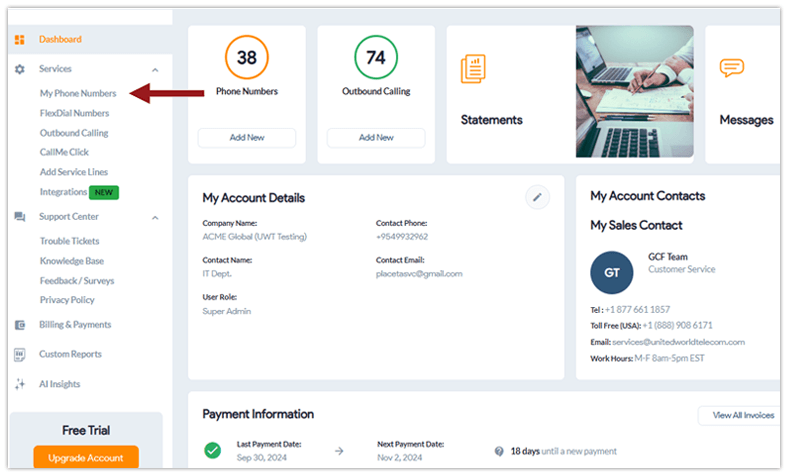
2. Click My Phone Numbers on the left-hand side of the page.
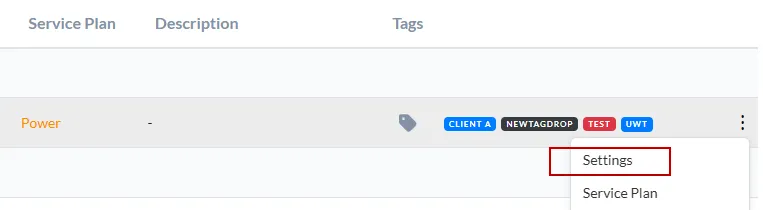
3. Go to the dots on the far right and select Settings next to the line you want to edit.
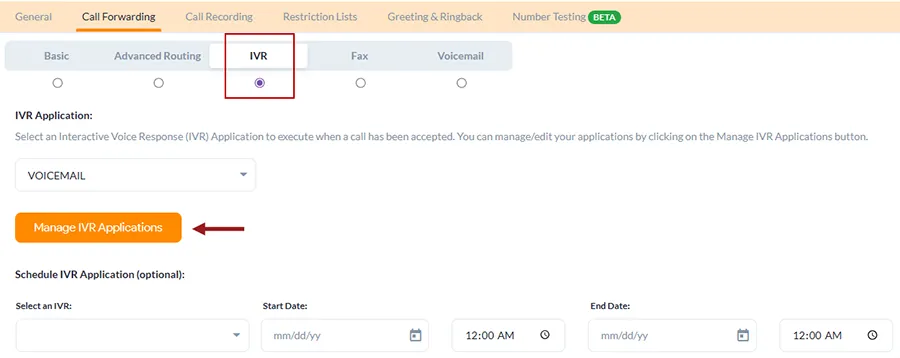
4. Underneath Call Forwarding, hover over IVR (⚪). To switch to IVR from Basic Forwarding, click the icon so it is selected (🔵), indicating that your call forwarding is set to IVR.
Then, click Manage IVR Applications to customize your IVR processes.
5. You will find the Whispers option on the right side of this page. Select it.

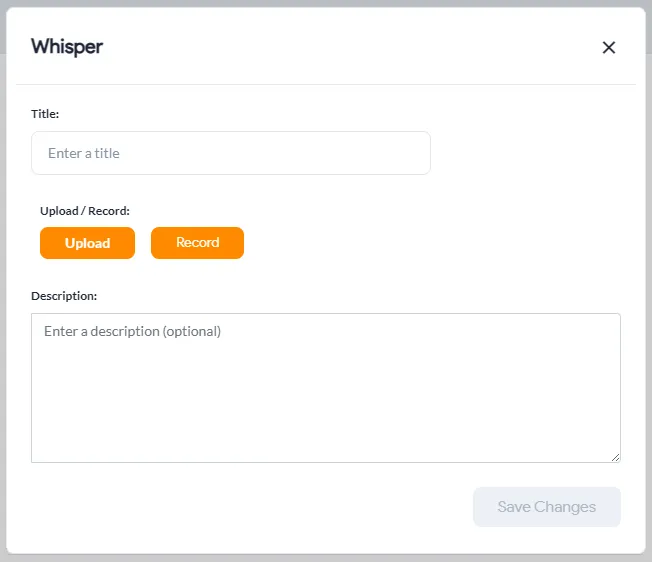
6. Start by clicking on Add a new whisper. Enter a title, upload or record your prompt, and save. You can add as many whispers as needed.
7. Once you have the whispers ready, you can click on Create New Application (if you don’t have one set up) or edit an existing application and add the whisper to it.
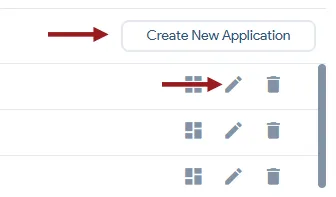
8. To use Call Whisper, you will need to add it to the Phone Call action within your IVR. The Phone Call action redirects the call to a specific number, department, team, or hunt group.
Learn more about IVR trigger actions here.
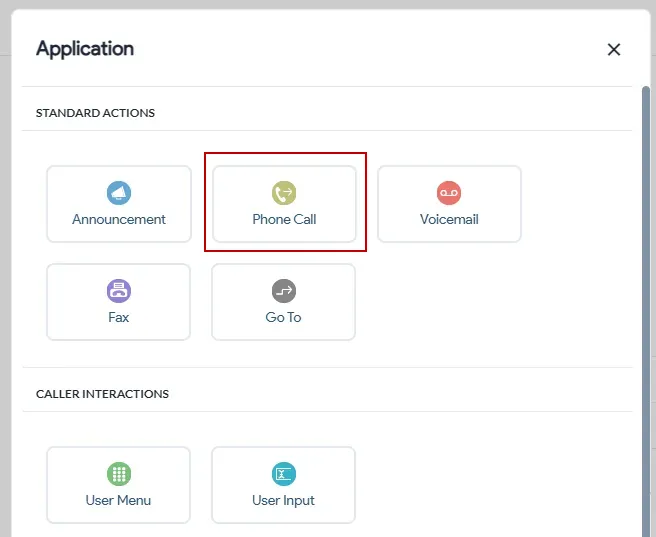
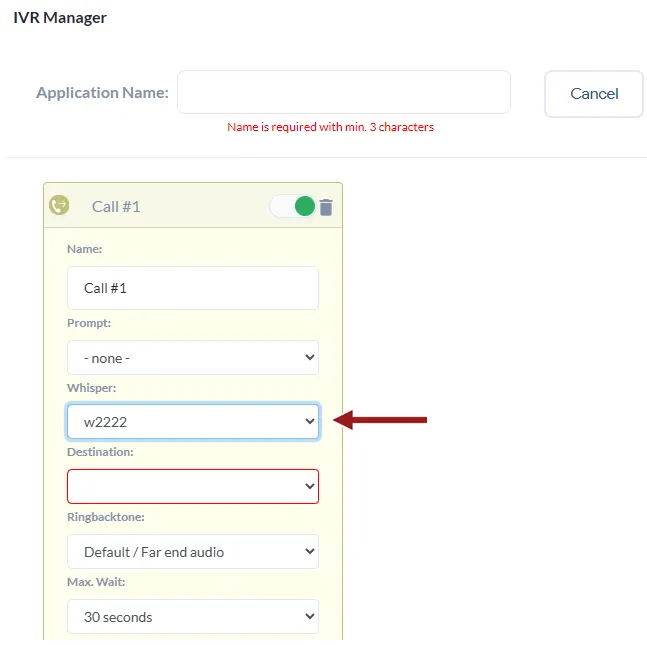
9. Set up the rest of the Phone Call action card with your our desired:
- Prompt – announcement for the caller to hear
- Destination – where this call will finally forward to
- Ringback tone – the tone your caller will heard
- Answered – additional action when call is answered
- Failed – action when call is not answered, etc.
You can add this Phone Call action at the beginning of your IVR. When callers connect to your IVR, it will automatically:
Redirect to your desired destination
- Play a prompt or announcement for your caller
- Play the Call Whisper for your receiving team, and
- Connect the call.
If you want this Call Whisper to play for a secondary team like a call center or off-hours agent, you can add a separate Phone Call action for after hours routing and then add the Call Whisper there. This will alert that team that the call is coming from a customer of your business.
To set up and create a new IVR application, check out our detailed IVR setup guide.
Need help setting this up? Connect with our tech support team or your account manager.