
You can update the credit card on file or switch to PayPal at any time from the Billing & Payments section of your control panel. Both options apply to your next scheduled charge.
Update Your Credit Card
You can update your payment information from two locations:
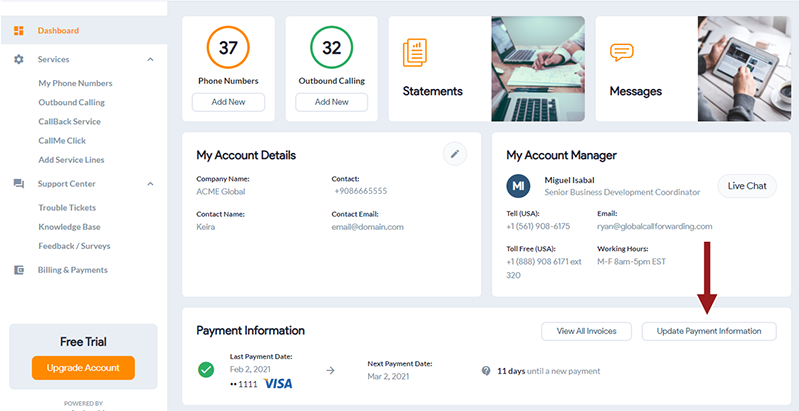
From the Main Dashboard:
1. On the bottom right-hand side of the page, click Update Payment Information.
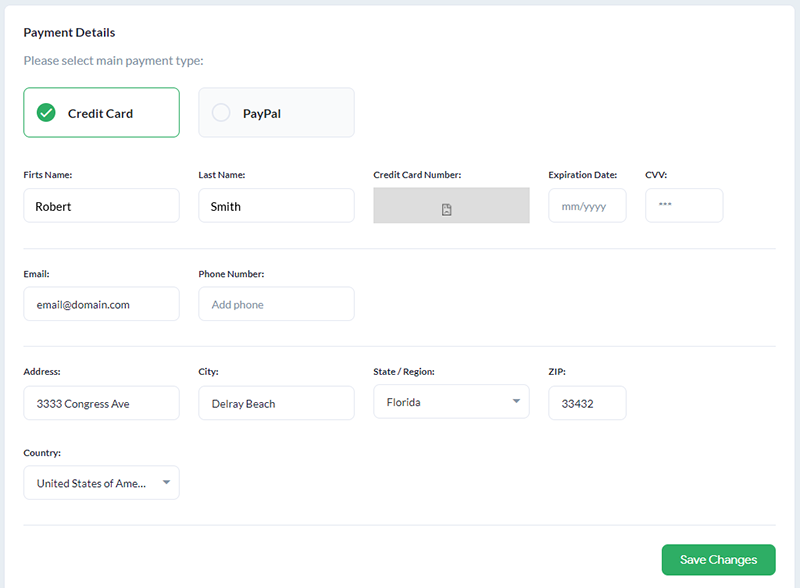
2. Enter your new payment information and click Save Changes.
From the Billing & Payments page:
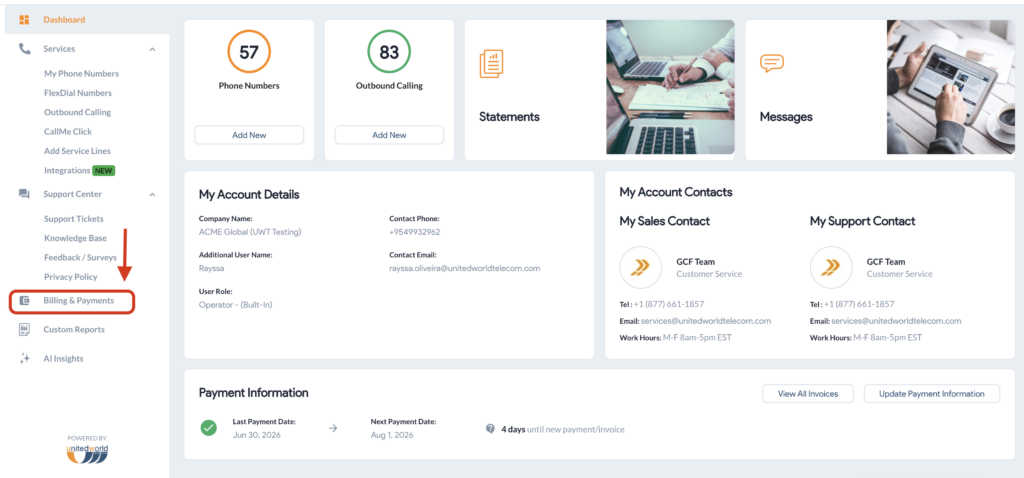
1. In the left-hand menu, click Billing & Payments.
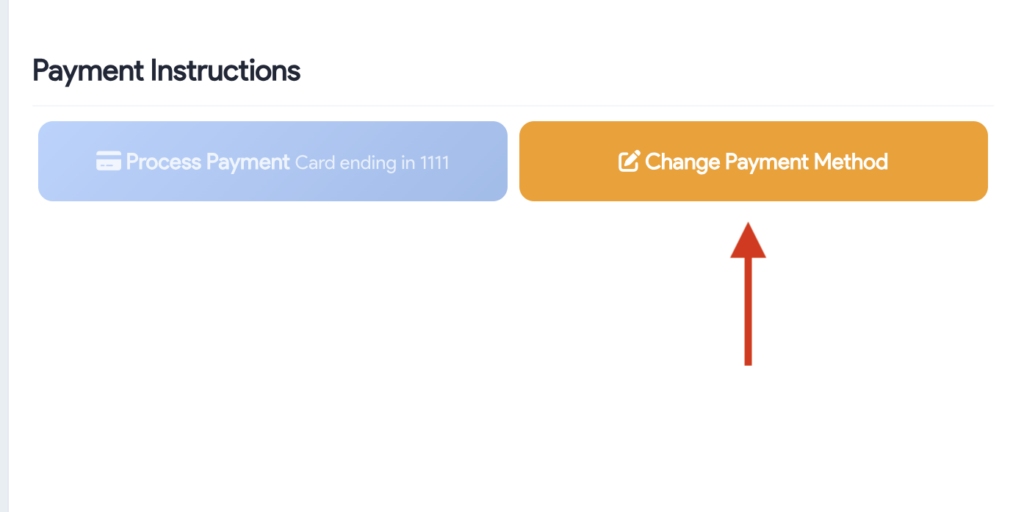
2. On the Billing Dashboard, scroll down until you see Payment Instructions.
3. Under Payment Instructions, click Change Payment Method.
4. Enter your new card details and click Save Changes.
Your updated card replaces the one on file and applies to your next invoice. Any outstanding balance still needs to be settled separately, using the Process Payment button on the same page.
Switch to PayPal Autopay
1. In Billing & Payments, open Change Payment Method and select the PayPal option.
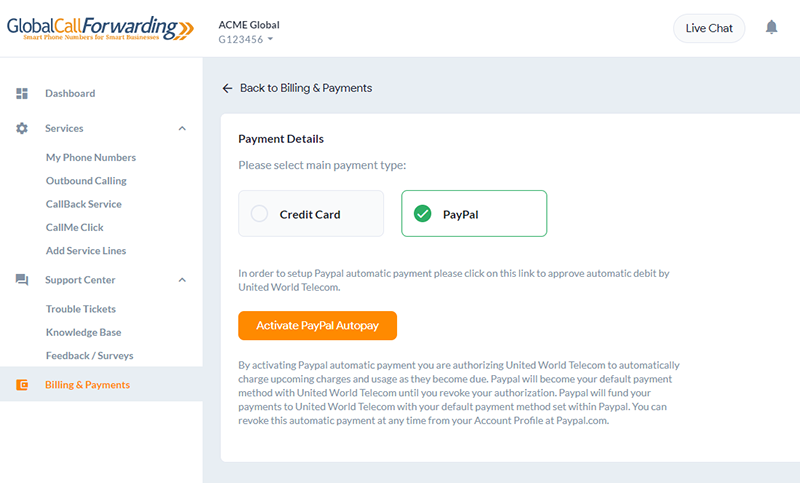
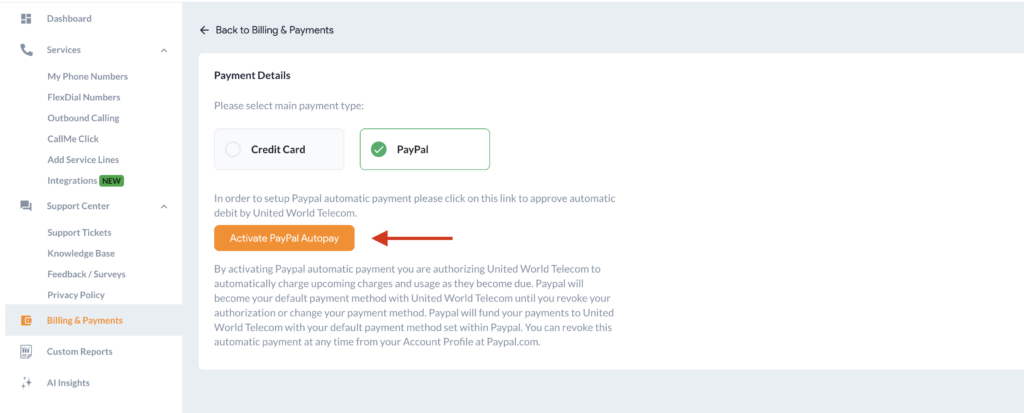
2. Click Activate PayPal Autopay.
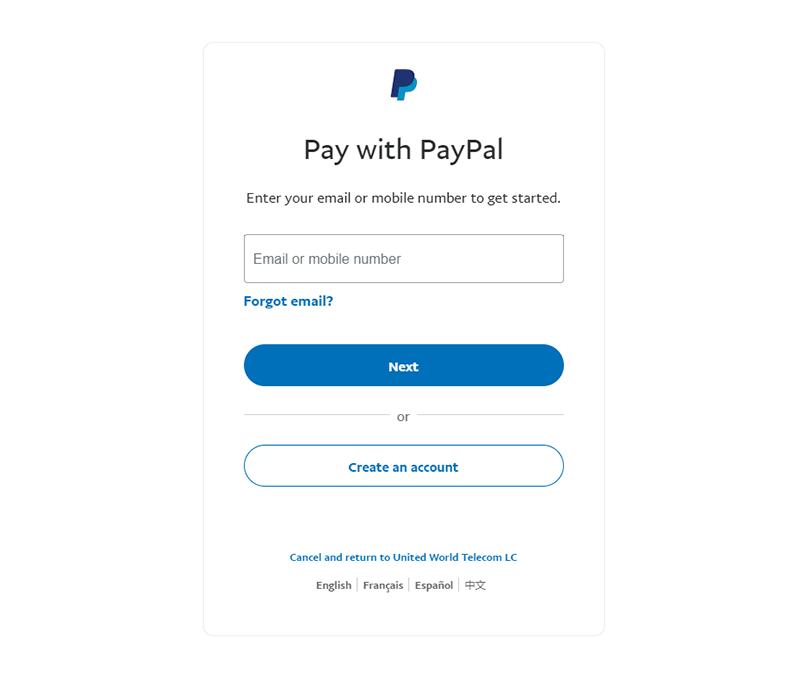
3. A PayPal window opens. Log in to your PayPal account and approve the billing agreement.
4. Once PayPal confirms the agreement, the control panel reopens with PayPal set as your active payment method.