
IVR Scheduling allows you to run different IVR call paths based on time and availability. By setting schedules, you can automatically switch call flows for business hours, after-hours, weekends, or holidays without manual updates.
Here are the steps to set up and manage IVR schedules in the control panel:
1. Log in to your control panel.
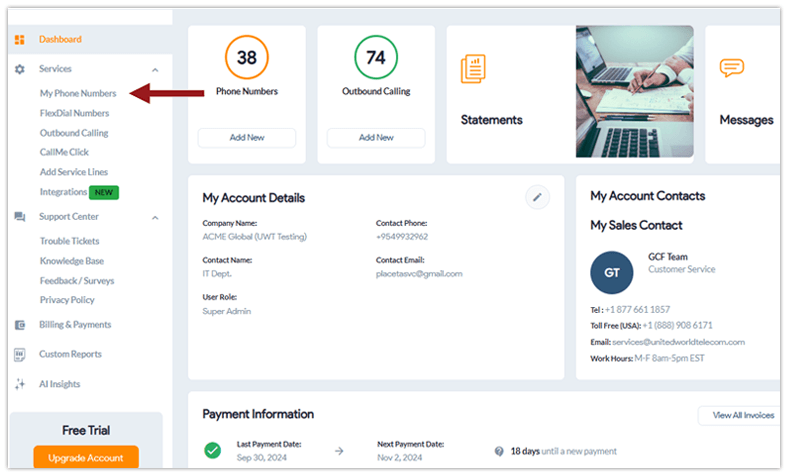
2. Under Services, click on My Phone Numbers, located in the page’s left-hand menu.
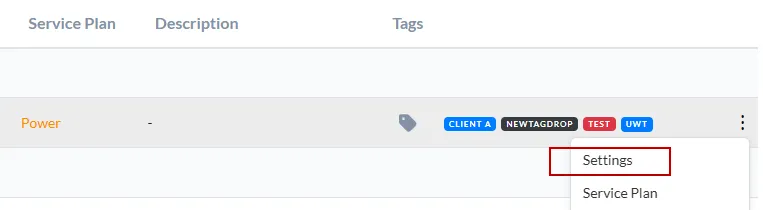
3. Go to the dots on the far right and select Settings next to the line you want to edit.
4. Underneath Call Forwarding, hover over IVR (⚪). To switch to IVR from Basic Forwarding, click the icon so it is selected (🔵), indicating that your call forwarding is set to IVR.
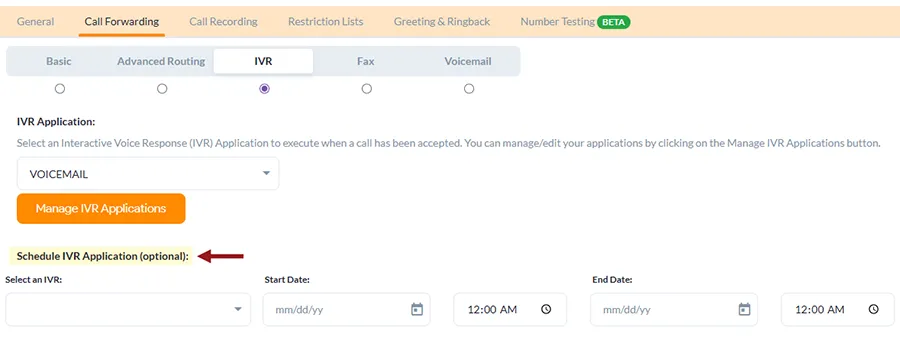
You will see the option to set up a schedule for your IVR here.
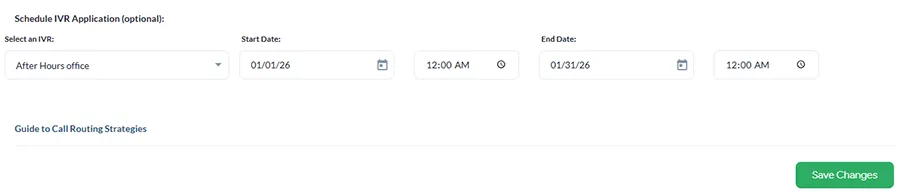
5. If you already have an IVR set up for this line, simply select the IVR from the dropdown and add your desired start date, end date, and times.
Then, click Save Changes to activate your schedule.
To set up and create a new IVR application for this phone line, check out our detailed IVR setup guide with step by step instructions.
Need help setting this up? Connect with our tech support team or your account manager.